
A Slack client for Mac that organises conversations into topics and decides which messages are worth a notification.
Download for Mac For Apple Silicon Macs.
One list of topics
A topic is a Slack thread, or the unthreaded messages of a channel or DM. Juno lists them newest first, and Resolve removes one from the list until someone replies.
Notifications decided for you
Each message either notifies you or stays in Juno. Juno reads it with your instructions in your own words, and keeps every decision with its reason.
Home
Home lists questions you have not answered and things you said you would do. When you are caught up, it shows a painting with one line about it.
⌘K and Search
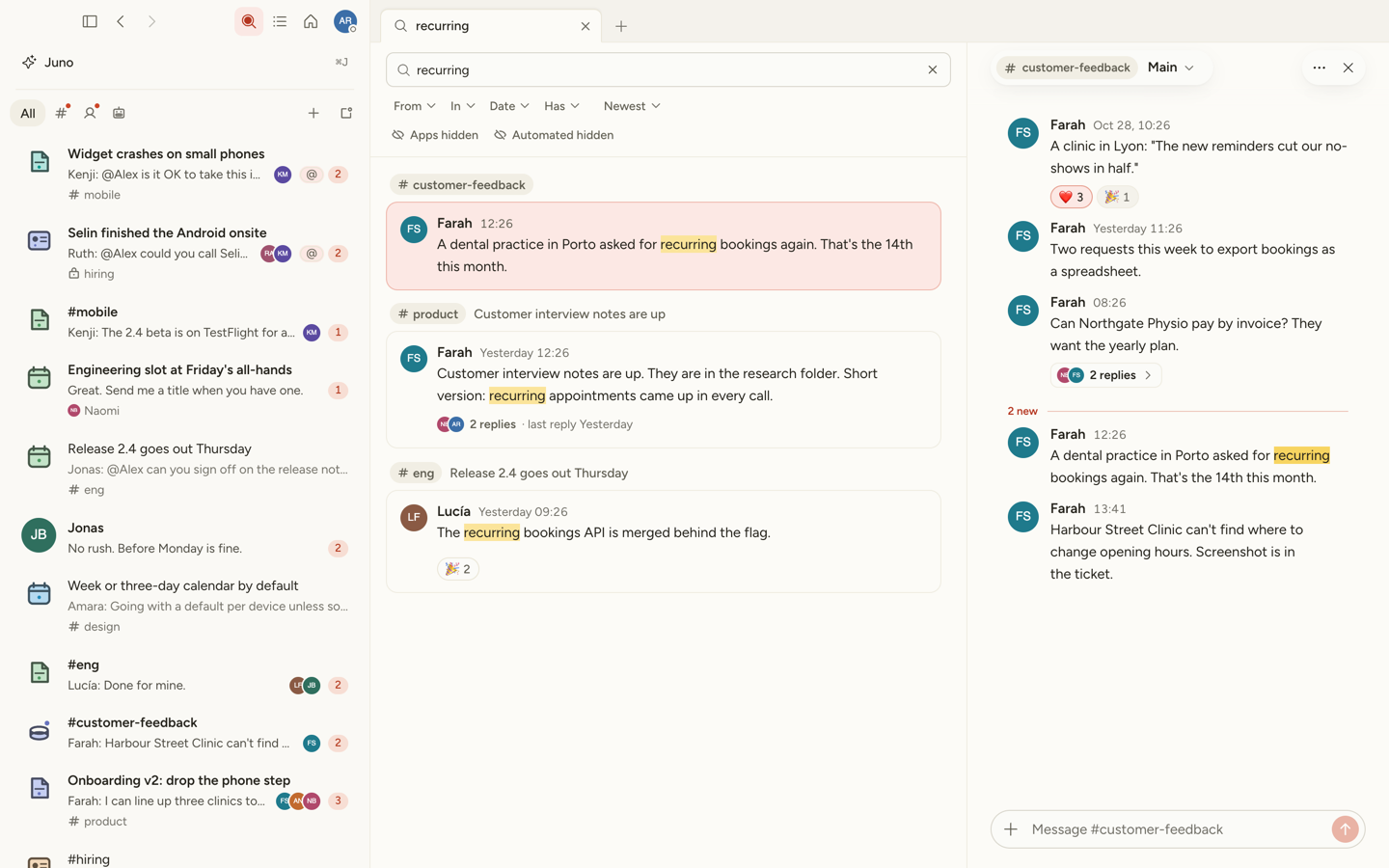
⌘K finds conversations and messages already on this Mac. The Search tab searches Slack with filters, and opens each result's topic beside the results.
Ask Juno
Ask Juno to catch you up on a topic, and the answer links to the messages it read. Ask it to draft a reply, and it waits for your click before sending.
Also tabs like a browser, your own views of channels and DMs, Slack huddles, a blur for message text while you share your screen, web links in a side panel, and light and dark themes.
Getting started
- Download the
-arm64.dmgfrom the latest release and drag Juno to Applications. - If macOS blocks the first open, choose Open Anyway in System Settings › Privacy & Security, or run:
xattr -d com.apple.quarantine /Applications/Juno.app - Sign in to Slack's desktop app first. In Juno, choose "Use the Slack app's session" and allow the macOS password prompt.
- For the AI features, add an OpenRouter key in Settings › Juno. These features send the relevant Slack text to OpenRouter, or to the endpoint you chose for the assistant. Without a key, direct messages and mentions notify.